
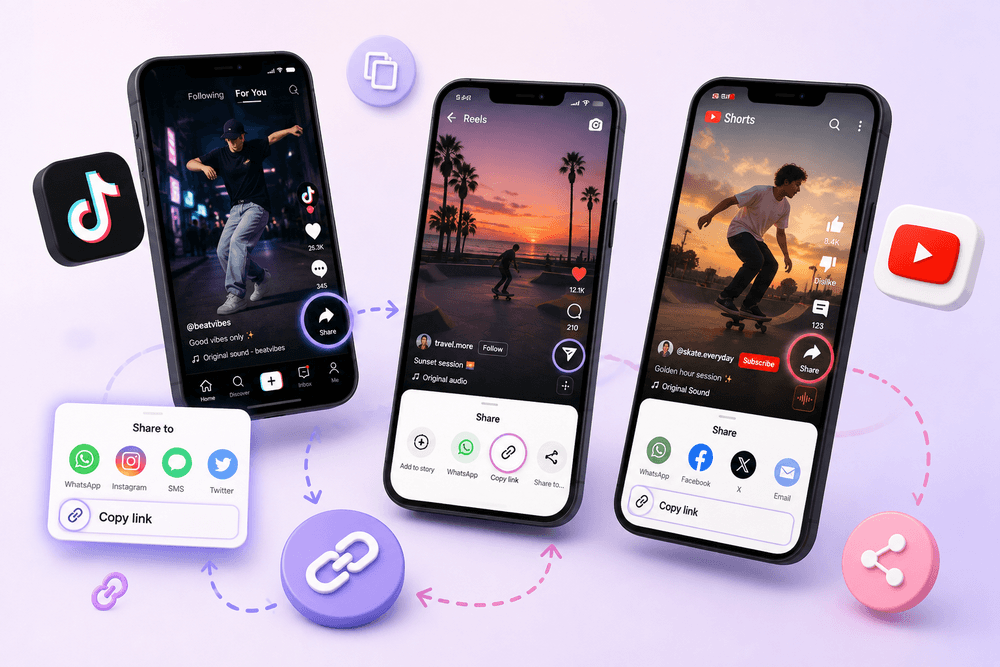
To copy a TikTok, Instagram Reel, or YouTube Shorts link, open the video, select Share, and choose Copy link. The link is saved to your device’s clipboard, ready to paste into a message, browser, notes app, or online tool.
The process is similar on all three platforms, but the Share button appears in a slightly different place on each one. This guide shows the exact steps for mobile and desktop, how to check that you copied the correct video, and what to do when the link doesn’t work.
The Quick Method
If you already have the video open in a mobile app, follow these three steps:
- Select the Share icon on the video.
- Choose Copy link from the sharing menu.
- Open the destination and select Paste.
Copying a link doesn’t download or duplicate the video. It only copies the web address that points to the original post.
Make sure you’re viewing the individual TikTok, Reel, or Short before copying. If you’re on the creator’s profile or channel, you may accidentally copy a profile link instead of the video link.
How to Copy an Instagram Reel Link
You can copy an Instagram Reel link from the Instagram app or a desktop browser.
From the Instagram app
- Open Instagram and find the Reel you want to share.
- Tap the Share icon on the Reel.
- Select Copy link.
- Wait for the confirmation that the link has been copied.
- Paste it wherever you need it.
Depending on your version of Instagram, Copy link may appear immediately or inside the full sharing menu. If you don’t see it, expand the available sharing options.
Instagram’s official instructions also direct users to open the Reel’s Share menu and select Copy link. View Instagram’s Reel sharing instructions.
From a mobile browser
If you’re watching the Reel in a browser instead of the Instagram app:
- Open the individual Reel page.
- Tap the browser’s address bar.
- Select the complete URL.
- Choose Copy.
Be sure the page displays the Reel itself, not the Instagram account that published it.
From a desktop computer
- Open Instagram in your browser.
- Select the Reel.
- Copy the URL from the browser’s address bar.
You can normally use Ctrl + C on Windows or Command + C on Mac after selecting the address.
A typical Instagram Reel URL contains:
instagram.com/reel/
It may have additional letters, numbers, or tracking information after the Reel identifier. You don’t usually need to remove anything before sharing or pasting it into a compatible tool.
How to Copy a TikTok Video Link
TikTok lets you copy links to individual videos from its mobile app and website.
From the TikTok app
- Open the TikTok video.
- Tap the Share arrow on the side of the screen.
- Find and select Copy link.
- Wait for TikTok to confirm that the link was copied.
- Paste it into the destination you want to use.
If Copy link isn’t visible immediately, swipe through the available sharing actions. It may appear after the suggested contacts and social apps.
TikTok provides its sharing controls through the Share button displayed with each post. TikTok’s official sharing guide explains how this menu is used.
By pressing and holding the video
On some devices and app versions, pressing and holding a TikTok video opens a quick-action menu. If Share appears there, select it and then choose Copy link.
The regular Share arrow is usually more reliable because its position is easier to find.
From a desktop computer
- Open the TikTok video in your browser.
- Select Share near the video.
- Choose Copy link.
You can also select and copy the URL directly from the browser’s address bar.
TikTok links can appear in different formats. You may receive a full address containing the creator’s username and video number, or a shorter redirect link.
Both can be valid. A short TikTok link usually opens the full video URL when visited in a browser.
How to Copy a YouTube Shorts Link
YouTube Shorts can be shared from the YouTube app, mobile browser, or desktop website.
From the YouTube app
- Open the YouTube Short.
- Tap Share on the right side or below the video.
- Select Copy link.
- Paste the link into your preferred app or tool.
YouTube’s official sharing instructions use the same process: open the video, select Share, and choose Copy link. View YouTube’s video sharing guide.
From a mobile browser
- Open the Short in your browser.
- Tap Share and select Copy link.
If the sharing option isn’t available, copy the complete address from the browser bar.
From a desktop computer
- Open the YouTube Short.
- Click Share.
- Select Copy.
You can also copy the address directly from the top of the browser.
A YouTube Shorts link commonly contains:
youtube.com/shorts/
You may also receive a shorter youtu.be link or a standard YouTube watch link. These formats can all lead to the same video.
How to Check That You Copied the Correct Link
Before sending or using the link, paste it somewhere you can see it. A notes app, browser address bar, or empty message field works well.
Check the beginning of the address:
| Platform | What the link usually contains |
|---|---|
| Instagram Reels | instagram.com/reel/ |
| TikTok | tiktok.com/ or a TikTok short-link domain |
| YouTube Shorts | youtube.com/shorts/, youtube.com/watch, or youtu.be/ |
Then open the link in a browser. It should lead directly to the video you intended to copy.
If it opens the creator’s profile, channel, homepage, or search page, return to the individual video and copy the link again.
You can also test the link in a private browser window. This helps you see whether the post is publicly accessible to someone who isn’t signed in to your account.
What Can You Do With the Copied Link?
A copied link can be sent to someone, saved for later, opened on another device, or used with a compatible online tool.
For example, if you heard music in the video but the song title isn’t displayed, you can paste the public link into the appropriate FreeSongFinder page:
- Use the TikTok Song Finder for a TikTok video.
- Use the Instagram Reel Song Finder for an Instagram Reel.
- Use the YouTube Shorts Song Finder for a YouTube Short.
Paste only one video link at a time. A creator profile or channel link doesn’t identify which specific post contains the music.
Copying a link also doesn’t make private content public. A tool or another person can only access the post if the platform allows it to be viewed.
Why Can’t I Find the Copy Link Option?
The platform’s layout may look slightly different depending on your device, country, app version, or whether you’re using a browser.
Try the following:
- Open the video in the platform’s official app.
- Select the Share icon.
- Swipe through all available sharing actions.
- Look for Copy link, Copy URL, or a similar option.
- If it still isn’t available, open the video in a browser and copy the address manually.
Updating the app may also help if your sharing menu looks incomplete or doesn’t respond.
Avoid using the Download or Save video button when you only need the link. Downloading saves a media file to your device, while Copy link saves the video’s web address to your clipboard.
Why Doesn’t the Copied Link Work?
A link can stop working even when it was copied correctly.
The video was deleted
If the creator removes the post, its original link may lead to an unavailable page. Copying the URL again won’t restore the video.
The account is private
A private Reel, TikTok, or YouTube video may only be visible to approved viewers. Someone outside that audience won’t gain access simply because you sent them the URL.
You copied a profile or channel
A profile link opens the creator’s complete account instead of one video. Return to the individual post before using Share and Copy link.
The link was cut off
Links contain a precise series of characters. Missing even one character can prevent the correct video from opening.
Copy the link again using the platform’s Share menu instead of selecting only part of the address manually.
The link includes extra characters
Some shared URLs include tracking information after a question mark. This doesn’t normally prevent the link from working.
If you edit the URL, take care not to remove the video identifier. The safest option is to use the complete link exactly as the platform copied it.
The video has regional or age restrictions
A post may open for you but not for someone in another location or someone who isn’t signed in. Copying the link doesn’t remove the platform’s viewing restrictions.
Can You Copy a Link Without an Account?
You can often copy a link from a public video opened in a browser without signing in. Select the browser address and copy it manually.
However, the platform may ask you to sign in before displaying some posts or features. A link shouldn’t be used to bypass login requirements, private accounts, age limits, regional restrictions, or any other access control.
If the video isn’t publicly available, copying its address won’t make it accessible to other people or external tools.
Is It Safe to Share a Copied Link?
Sharing a public video link is generally different from sharing your account password or private messages. Still, check the link before sending it.
Some platform-generated links include tracking parameters that may provide the platform with information about how the link was shared. If you’re concerned, open the link in a browser and share the main video address after confirming that it still works.
Never enter your Instagram, TikTok, or YouTube password into an unrelated website just to copy or open a video link. Copying a public URL shouldn’t require you to give another service access to your account.
Conclusion
To copy an Instagram Reel, TikTok video, or YouTube Shorts link, open the individual video, select Share, and choose Copy link. Paste the address somewhere and confirm that it opens the correct post rather than the creator’s profile. Once copied, a public link can be shared, saved, or used with the relevant FreeSongFinder tool to identify music playing in the video.
Frequently Asked Questions
Where is the Copy link button on Instagram Reels?
Open the Reel, tap the Share icon, and select Copy link. If it isn’t immediately visible, expand or scroll through the available sharing actions.
How do I copy a TikTok link without downloading the video?
Tap the Share arrow on the TikTok and choose Copy link. Don’t select Save video, as that downloads the media instead of copying its address.
How do I copy a YouTube Shorts link on a computer?
Open the Short, select Share, and click Copy. You can also copy the URL directly from your browser’s address bar.
Why does my copied link open a profile instead of the video?
You probably copied the creator’s profile or channel URL. Open the individual Reel, TikTok, or Short and copy its link from the video’s Share menu.
Can someone view a private video if I send them its link?
Not unless the platform has already given them permission to view it. A copied link doesn’t bypass private-account or restricted-video settings.