
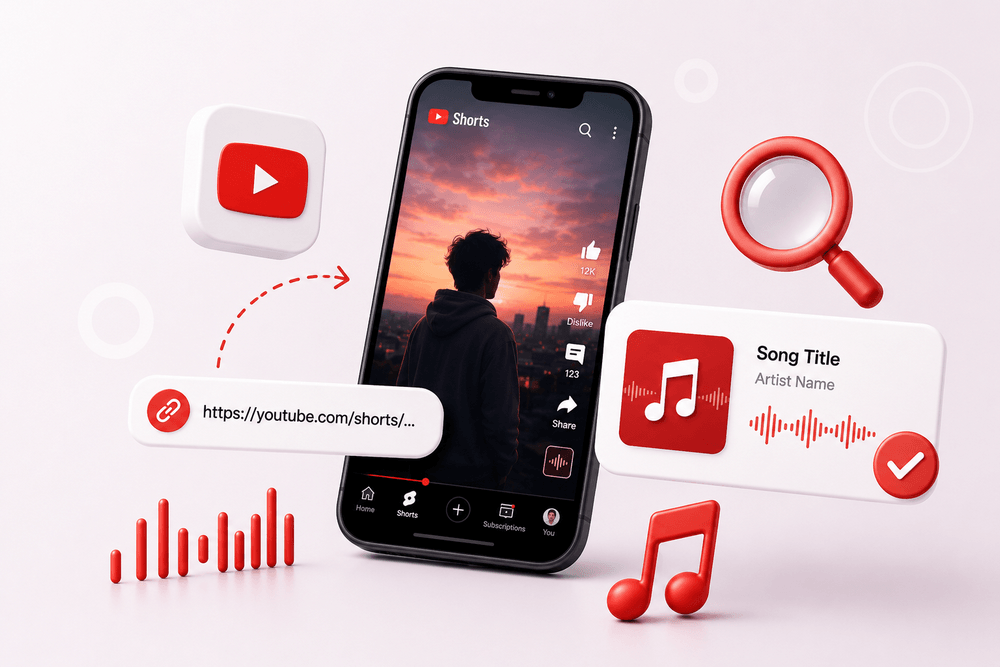
A YouTube Short may use only a few seconds of a song, which is often enough to get it stuck in your head but not enough to recognize the title. The creator might be talking over it, the music may be edited, or the Short may end before you can understand the lyrics.
To find a song from a YouTube Short, begin with the sound attribution displayed on the Short. Then open the description and look for a “Music” or “Music in this video” section. YouTube may already provide the song title and artist. If it doesn’t, check the creator’s credits and comments or use the public Shorts link to identify the music.
Start With the Short’s Sound Attribution
Open the YouTube Short and look near the bottom of the screen. You may see a sound title beside a music or spinning-record icon.
If the creator added an official track using YouTube’s music tools, the song title and artist may appear there. Tap the sound name to open its page.
The sound page can help in two ways. First, it may confirm the official title. Second, it shows other Shorts using the same sound. Another creator may have used a longer or clearer part of the song.
Don’t rely on the sound attribution without listening, though. A Short can contain several audio layers. The displayed sound might be the official track attached through YouTube, while the music you want was already embedded in the uploaded video.
If the attribution only shows the creator’s original sound, continue to the video description.
Look for “Music in This Video”
YouTube has one useful feature that isn’t always obvious when you’re watching Shorts. On some videos, it automatically adds a music section to the description.
Depending on the device and page layout, this may appear as “Music” or be referred to as “Music in this video.” It can show information such as:
- Song title
- Artist
- Album or recording details
- Links to official music content
To look for it, open the Short’s description. On a phone, you may need to tap the title, caption, or description area to expand the full details. In a desktop browser, open the Short and expand the description below or beside the player.
According to YouTube’s official explanation, this information is added to some videos when the music is recognized through one of YouTube’s copyright-management tools or comes from the YouTube Audio Library.
That makes it one of the most reliable places to check. The information comes from YouTube’s music attribution system rather than from guesses in the comments.
However, not every Short receives this section. Its absence doesn’t mean the audio is original or impossible to identify. It may simply mean YouTube hasn’t attached music details to that video.
What if the Sound Name and “Music in This Video” Are Different?
Sometimes the sound attribution and description appear to name different tracks. This usually happens when a Short contains more than one source of audio.
For example, a creator might select one song from the Shorts library but upload footage that already contains another song in the background. The video may also switch tracks during a transition or combine the vocals from one song with the instrumental from another.
Play the Short again and notice when the music you want begins. Then compare that section with each listed track.
The title shown on the sound page may describe the main Shorts audio, while the “Music in this video” section identifies music detected elsewhere in the video. Both can be correct.
If neither title matches, the Short may use an edited version, mashup, cover, or sound effect that YouTube hasn’t identified accurately.
Read the Full Description
If YouTube hasn’t added automatic music details, check what the creator wrote manually.
Creators sometimes include music credits at the end of the description rather than in the visible caption. Expand the complete description and look for phrases such as:
- Music by
- Song
- Track
- Background music
- Audio
- Remix by
- Produced by
Also check for links or names connected to a musician, producer, or record label. A creator may tag the artist without mentioning the exact track title.
If the Short is taken from a longer video, look for a link to the full version. The longer video may contain more detailed credits or a clearer part of the music.
Channel descriptions can also provide useful context. A travel creator, gaming channel, or video editor may repeatedly use music from the same artist. Looking at a few recent uploads can reveal a pattern.
Check the Comments Without Trusting Every Answer
If a song stands out, someone may already have asked about it in the comments.
Open the comment section and look for questions such as “What’s the song?” or “What music is playing?” The creator may have answered directly or liked the correct response.
On Shorts with many comments, search the page for words such as “song,” “music,” “track,” or “name” when your browser supports page search.
Comments are useful, but they aren’t official attribution. One viewer may name the original song while another gives the title of a remix. Search the suggested track and compare it with the Short before accepting the answer.
If nobody has asked, leave a short and polite question. This can be particularly effective when the audio is an original composition made by the channel owner.
Find a Song Using the YouTube Shorts Link
When the sound attribution, description, and comments don’t provide a clear answer, use the Short’s public link.
The YouTube Shorts Song Finder lets you paste a Shorts URL and check the audio without needing to know the lyrics or play the video on another device.
Follow these steps:
- Open the YouTube Short containing the music.
- Tap or select Share.
- Choose Copy link.
- Open the YouTube Shorts Song Finder.
- Paste the copied link into the input field.
- Start the song-identification process.
- Review the returned title and artist when a match is available.
Copy the link to the individual Short rather than the channel. A channel link doesn’t identify which video contains the song.
This method is especially useful when the music can be heard clearly but YouTube hasn’t displayed its title. It may not produce a match when the song is unreleased, the sample is too short, or speech covers most of the music.
Search the Lyrics You Can Hear
If you can understand part of the vocals, pause and replay the clearest section. Write down one distinctive line rather than every word you think you hear.
Place the line inside quotation marks and add “song”:
“we kept driving until the morning came” songQuotation marks help narrow the results to pages containing the same phrase. If you’re unsure about one word, try another version of the line.
Avoid searching only a common phrase such as “I love you” or “come back home.” Add another lyric, the type of singer, or a detail from the Short to make the search more specific.
YouTube Shorts often use edited audio. If the lyrics match but the recording sounds different, search the song title with:
- Sped up
- Slowed
- Remix
- Cover
- Acoustic
- Live version
- Mashup
The official track may have a lower voice, slower tempo, or longer introduction than the version used in the Short.
Use Other Shorts With the Same Sound
A Short with a loud voice-over may not contain enough clean music to identify. Instead of repeatedly analyzing the same clip, open its sound page and listen to other Shorts using that audio.
Look for a video with:
- No narration
- A longer music section
- Fewer sound effects
- Clearer lyrics
- A caption that credits the track
This is often more effective than trying to separate quiet music from speech. The sound page may contain hundreds of Shorts, but you usually only need to check a few to find a cleaner example.
Once you find one, check its description for music details or use its public link instead.
Why YouTube May Not Show the Song
YouTube can identify and attribute music in many videos, but it won’t name every track.
The song is part of the original recording
Music captured at an event, in a shop, on television, or through another device may be too quiet or distorted for YouTube to recognize.
The creator changed the audio
Pitch changes, speed adjustments, filters, and repeated loops can make a familiar song sound very different from its official recording.
The Short uses a cover
A live or acoustic cover may not match the commercially released recording closely enough. Searching the lyrics can help you find the original song, even if you can’t identify the performer in the Short.
Several songs are playing
An edit may include multiple tracks in under a minute. YouTube may display one song while you’re interested in another.
Treat each section as a separate search. Note the approximate moment when the music changes and identify one part at a time.
It’s an unreleased track
Artists often preview unfinished music through Shorts. The song may not yet have an official title or released recording.
Check the channel’s newer uploads, Community posts, pinned comments, and description. The artist may have announced the title or release date elsewhere.
The Short has been muted or removed
A link-based finder needs accessible audio. If the Short has been deleted, made private, or muted, there may be nothing available to analyze.
Look for another public upload, but don’t attempt to bypass private access or platform restrictions.
Confirm the Exact Version
Once you find a possible match, listen to enough of the full track to reach the part used in the Short. Don’t judge it only by the introduction.
Compare the lyrics, melody, beat, vocals, and main instruments. If those match but the speed is different, you’ve probably found the correct song but not the exact edit.
Finding the original title is often easier than locating the precise Shorts version. Some edits are created only for one video and may never be released as complete tracks.
Use Public Shorts Links Only
FreeSongFinder should only be used with publicly accessible YouTube Shorts links. It can’t and shouldn’t bypass private videos, deleted content, login restrictions, regional limitations, copyright systems, or YouTube’s access protections.
If a Short isn’t publicly available, use the sound attribution and information you’re authorized to view inside YouTube.
Conclusion
To find a song from a YouTube Short, begin with the sound attribution and then expand the description to look for “Music in this video.” If YouTube hasn’t listed the track, check the creator’s credits, comments, and audible lyrics. When the Short is public and the song remains unnamed, paste its URL into the YouTube Shorts Song Finder to check for a matching title and artist.
Frequently Asked Questions
Where can I see “Music in this video” on a YouTube Short?
Open and expand the Short’s description. On some videos, YouTube adds a “Music” section containing the song and artist details. This section isn’t available on every Short.
Can I find a song using only a YouTube Shorts link?
Yes, if the Short is public and contains enough recognizable audio. Copy its individual URL and paste it into a compatible song-identification tool.
Why doesn’t my YouTube Short show the song name?
The audio may be original, unreleased, heavily edited, too quiet, or not recognized by YouTube’s music systems. The creator may also have embedded the music before uploading the video.
What if the listed song isn’t the one I hear?
The Short may contain multiple audio layers or switch songs partway through. Check the description for additional tracks and identify the relevant section separately.
Can I identify a song when someone is talking over it?
Sometimes. Look for a quiet moment or open the sound page to find another Short with clearer music. A link-based finder or music-recognition app will work better with a cleaner sample.