
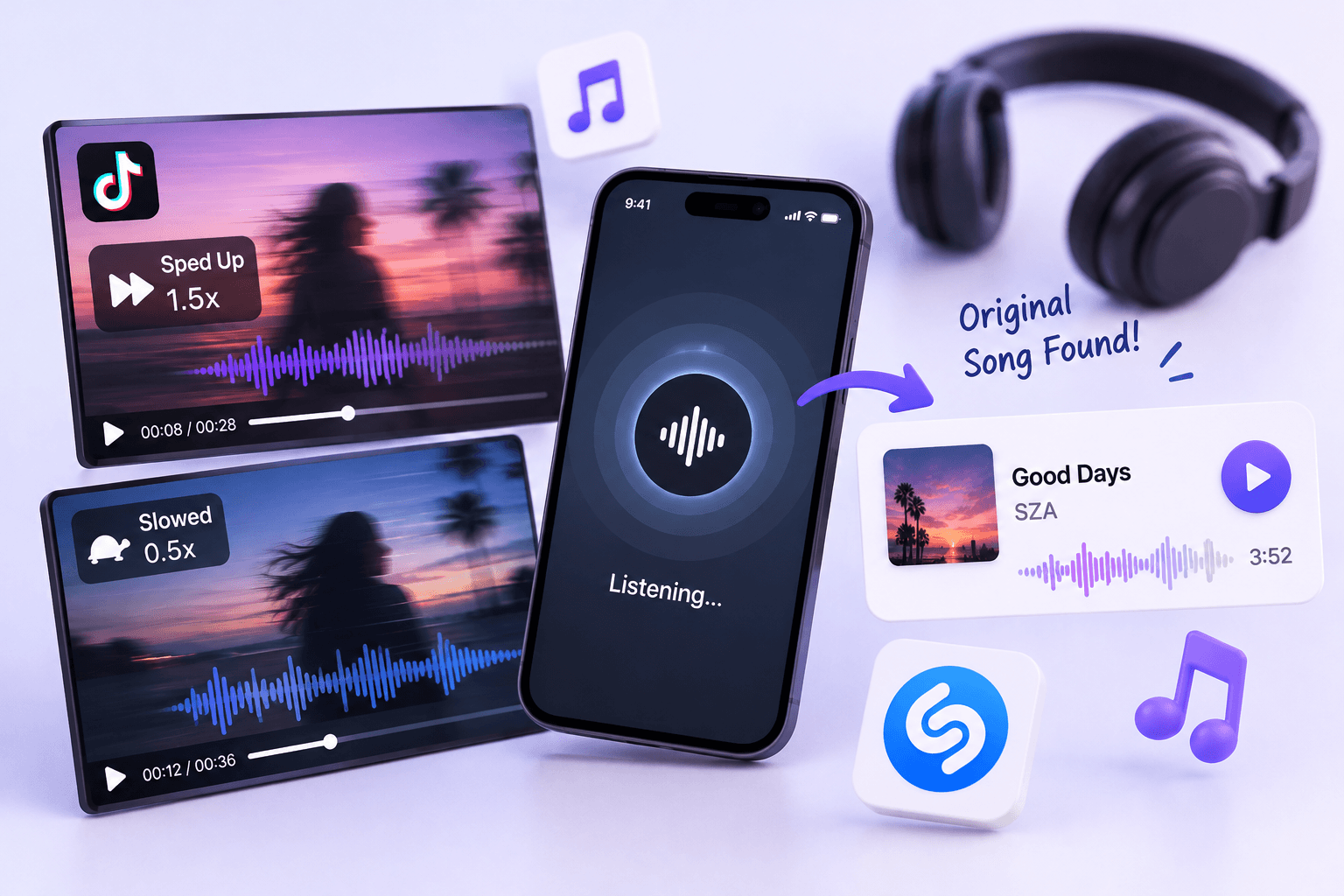
A sped-up song can make a familiar singer sound like someone else. A slowed version can turn an upbeat track into something much darker. Even when you recognize the melody, the title may stay just out of reach.
To find the original, first try identifying the clip as it is. If you get a title, search it with the artist’s name and compare the standard release with the passage in your video. If recognition fails, use a clear lyric or follow the audio credit before trying to change the speed yourself.
The important part is knowing what you are looking for. An unedited recording of the performance you heard is not always the first recording of the song. A slowed acoustic cover, for example, leads to the cover artist before it leads to the original performer.
Try the clip before changing anything
An altered song is not automatically impossible to identify. Start with the clearest available section and see whether a recognition tool returns a useful title.
For a public TikTok, Instagram Reel, or YouTube Short, you can identify the music from the video link. Copy the individual post’s URL, paste it into FreeSongFinder, and select Identify Song. There is no need to guess the original speed before making that first attempt.
Check the title and artist together. A result might name the standard recording, an officially released speed edit, or another version that needs a closer listen. FreeSongFinder does not guarantee a match for altered audio.
If you are using Shazam and it gives no answer, try another clear passage rather than the same short loop. The guide to what to try when Shazam cannot find a song covers recognition problems in more detail.
Keep the video link while you search. You will need to return to the exact passage to check whether a possible match is right.
If you have a title, search for the standard release
Start with the artist’s name and the song title, leaving out words such as “sped up,” “slowed,” “reverb,” or “edit.” Open the artist’s album or single release when you can find it, rather than relying only on a fan upload labeled “original.”
Then look for the part used in the video. A short clip may begin in the middle of a chorus, skip the introduction, or loop a bridge that only appears once in the full track. Comparing the first ten seconds of both recordings can give you the wrong impression.
Pay attention to the singer’s phrasing: where they pause, take a breath, or stretch a word. The same small details appearing at a different pace are useful clues that the clip comes from that performance.
Release information helps you choose between versions, but it does not replace listening. An earlier upload date does not prove that a video contains the original recording. Someone may have uploaded an old track years after its release.
Search the lyrics when the voice sounds unfamiliar
When the speed changes, it can be difficult to recognize the singer. The words may still be enough to identify the song.
Pick a phrase you can hear clearly and search it in quotation marks, followed by “lyrics.” Avoid adding the artist you think it sounds like until you have a reason to trust that guess. A higher or lower voice can be misleading.
If the exact phrase returns nothing, remove words you are unsure about or try the next line. Fast vocals can blur the boundary between words, while added reverb can make the end of a line harder to understand.
Once you find a matching lyric, search for the song title and compare recordings. This is especially useful for covers: the words can identify the composition even if the performance is different from the well-known release.
If someone is speaking over the music, focus on the gaps between sentences before searching. The steps for finding background music beneath talking can help you locate a more useful passage.
Check whether it is only a speed edit
“Sped up” and “slowed” can describe part of what happened to a clip without describing all of it. The creator may also have changed the pitch, added effects, replaced the drums, or used a different singer.
Listen for what remains the same.
| What you hear | What to check next |
|---|---|
| The same voice and instruments, moving at a different pace | Compare with the standard recording at the matching passage. |
| The same words, but different vocal phrasing | Look for a cover or live performance. |
| Familiar vocals over a different beat | Search for a remix or mashup credit. |
| A slower track with a long echo around each sound | Look for the underlying recording without the added reverb. |
A speed change alone does not add new instruments or replace a vocal performance. If those have changed, simply making the clip faster or slower will not bring back the recording you expected.
For example, a slowed piano cover may share its melody and lyrics with a pop song while using a completely different arrangement. Finding the pop original answers who first released the song; finding the normal-speed piano cover answers which recording was edited for the video.
Follow the audio credit back to the source
Open the caption and sound page, then check for a credited singer, producer, or editor. An account posting the edit may name the source track in a reply or link to a longer version.
When TikTok shows only a username, do not assume it belongs to the artist. Our guide to finding a TikTok song labeled Original Audio explains how to use the connected posts and credits.
Read the wording around a suggested title. A comment naming the “original” might refer to the song underneath a mashup rather than the exact recording used. Search the name, listen, and check which part it explains.
If the creator has posted a full version, read that description too. A short post may have little room for credits while the longer upload names the source and the person who edited it.
Adjust playback speed only when it helps you compare
Changing playback speed can make a rushed lyric easier to hear. It can also help you compare two recordings you already suspect are the same. It is less useful when you are choosing speeds at random and hoping one reveals the title.
There is a distinction between speed and pitch. An effect can change them together, or it can change the tempo while keeping the musical pitch close to the same. Audacity documents these separately as Change Speed and Pitch and Change Tempo.
That means slowing playback does not always make a high voice lower. The player may be preserving pitch. Likewise, returning the pace to something that sounds natural will not necessarily undo an independent pitch change.
A known speed change gives you a useful starting point
If you know that a recording was sped up to 1.25 times its original speed, playing that edited recording at 0.8 times speed restores its original pace: 1.25 multiplied by 0.8 equals 1.
The reverse works for a recording slowed to 0.8 times speed. Playing it at 1.25 times speed restores the pace.
These examples only reverse a known, constant speed change. They do not tell you which multiplier an unknown edit used, and they do not remove reverb, cuts, or a replacement beat. Whether the pitch is also restored depends on how both changes are applied.
For listening, make a small adjustment and compare. Keep the original clip available so you can undo the change. If the music starts sounding less natural or harder to understand, return to it rather than adding more processing.
Confirm the recording before saving it
Once you have a likely match, compare a whole phrase rather than a single note. Listen for the same backing instruments, vocal details, and transitions. Allow for the fact that a short edit may repeat a section or cut out a pause.
If those details line up and only the pace differs, you have a good reason to think you found the source recording. If the voice or arrangement remains different, keep looking for the cover or remix named in the credits.
There may also be two versions you want to keep: the artist’s standard release and the edit that introduced you to it. Save them under their proper names so you can tell them apart later.
If you still have only the video, start with its public link in FreeSongFinder. A title gives you a focused search; a clear lyric or a credited performer can provide the next lead when recognition does not.