
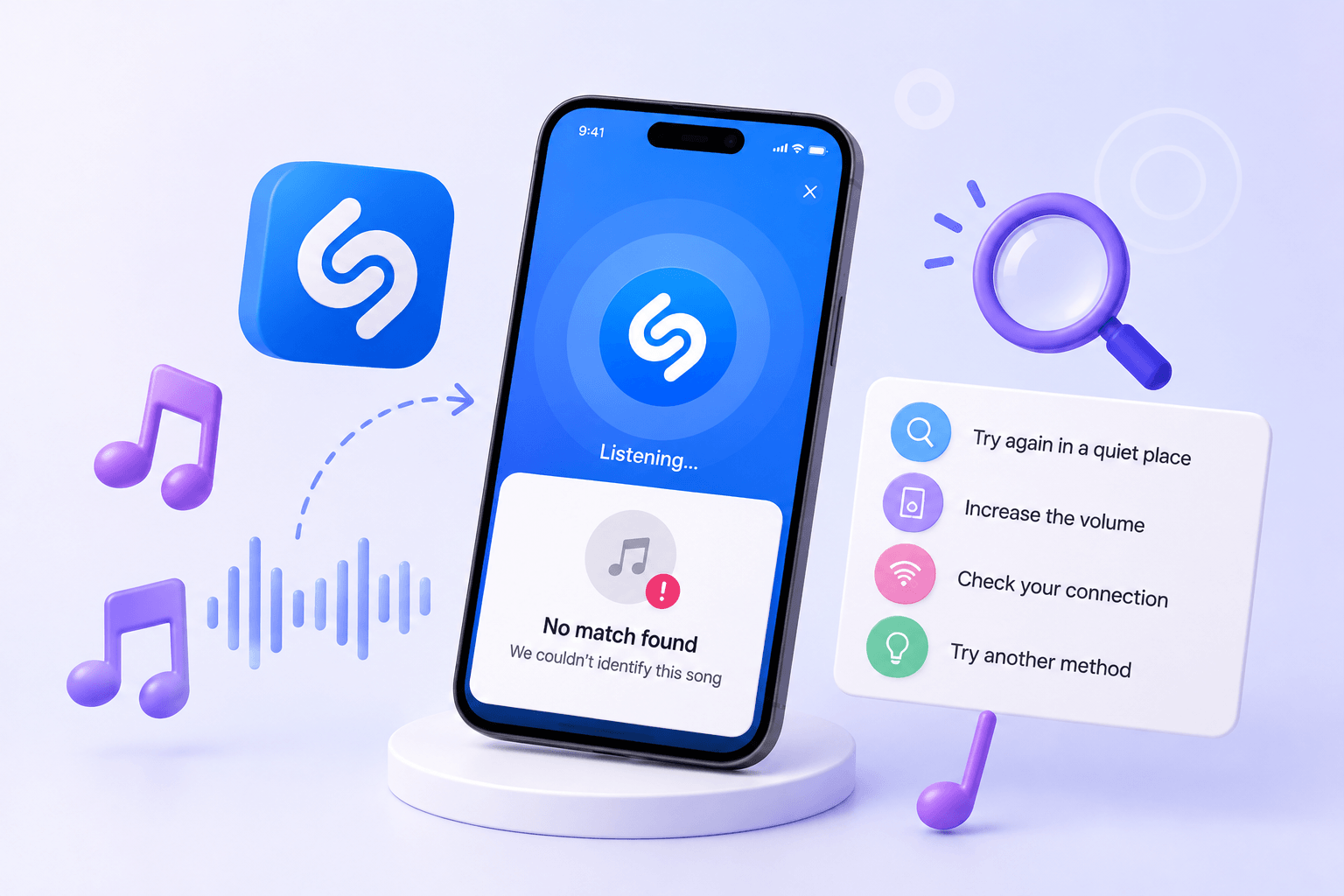
Shazam has listened to the clip twice and still has no answer. You can hear the music clearly enough to know you like it, but the app gives you nothing to search for.
Before trying again, check whether the problem follows the song or the app. If Shazam recognizes other music, spend your time finding a better part of the recording or looking for a credit. If it fails on everything, check how it is receiving the sound.
That small distinction can save you from changing phone settings when all you need is a clearer clip.
Find out whether Shazam is struggling with this song or every song
Play a different, familiar recording and try identifying it under similar conditions. This is a useful check, although one successful or failed attempt will not explain every problem.
If the second song is recognized, return to the unknown track. There is little reason to reinstall the app just because one recording gives it trouble.
If neither produces a result, check your connection and, when using the microphone to hear music around you, confirm that Shazam has microphone access in your phone settings. Close and reopen the app if it appears stuck. Apple provides a Shazam setup guide if you need to review its permissions.
Also notice where the sound is playing. Music coming from a nearby speaker and a video playing inside another app on your phone are different situations. For the latter, make sure playback continues while you start recognition. An app cannot work with the passage you wanted if the video has already paused.
Give it a different part of the song
Replaying the same few seconds is an easy habit to fall into. After a couple of failed attempts, move to another part of the recording instead.
Look for a section where the music stands on its own. In a recipe video, that might be the final shot after the instructions stop. In a travel clip, it could be a transition between spoken sections. A longer video may have a much clearer passage than the short preview that first caught your attention.
Turning up the volume helps only when the whole recording is too quiet. It also turns up any narration already mixed with the music. If a voice covers the song throughout the clip, look for another recording rather than raising the volume repeatedly.
When Shazam is listening through your microphone, reduce nearby noise and keep the speaker at a clear, comfortable volume. Avoid holding the phone against a speaker that is distorting the sound. You want a cleaner recording, not simply a louder one.
There is no single clip length that guarantees a match. A brief, clear passage and a long recording full of talking give a recognition tool very different material to work with.
If the video is on your phone, keep the audio playing
Switching from a video app to Shazam can be awkward if the video stops as soon as you leave it. You do not necessarily need a second device.
On iPhone, add Shazam Music Recognition to Control Center and use it while the video is playing. On Android, Shazam offers access through options such as Quick Settings and the notification bar. The available controls depend on your setup; Apple’s device instructions explain how to enable them.
Watch the video as you try. If recognition starts after the music ends, replay the relevant section.
Try the video link when you have one
For music in a public TikTok, Instagram Reel, or YouTube Short, you can also identify a song from its video link. This gives you a way to check the video without playing it through a speaker for another device.
Open the post, choose Share, and copy its link. Paste it into FreeSongFinder, select Identify Song, and review any result. Use the individual post rather than the creator’s profile. If you are unsure which address you copied, here is how to copy a TikTok, Reel, or Shorts link.
This is a different way to submit the audio, not a promise of a different answer. A link cannot restore music that has been muted or uncover a track completely covered by speech. FreeSongFinder can also return no match.
The useful question is whether the video contains enough clear music to check. If it does, the link is worth trying. If it does not, move on to the information around the video.
Look for the title where the video was posted
A song can be named in a caption or description even when audio recognition fails. Before searching across more apps, expand the post’s text and check the replies to comments asking about the music.
On TikTok, a sound label showing a username does not give you a reliable artist credit. The recording might contain a released track, an edit, or the creator’s own performance. If that is what you are seeing, follow the guide to finding a TikTok song labeled Original Audio.
For an Instagram Reel, check tagged accounts as well as the caption. A musician may be credited through a tag without the song title being written out. The guide to finding music from an Instagram Reel covers those places in more detail.
YouTube offers another possibility: some videos include music information in the description. If you heard the track in a Short, check its description and sound attribution before guessing at the lyrics. These are among the first places to look when finding a song from a YouTube Short.
Treat a title suggested by another viewer as something to verify. Play it and find the passage used in the clip.
Search a lyric or hum the melody
Sometimes you can make out the words even though Shazam cannot match the recording. Search the clearest phrase in quotation marks, with “lyrics” after it. A distinctive line gives you more to work with than a common phrase heard in hundreds of songs.
If nothing appears, remove the quotation marks or leave out words you are unsure about. Keep the words you can hear clearly. Guessing an entire sentence can send the search in the wrong direction.
When you remember the tune but have no recording, try a melody search. In the Google app, tap the microphone, choose Search a song, and hum or sing the part you remember. Google supports this on Android and iPhone.
Listen to the suggested matches rather than accepting the first one. A melody search may lead you to the song itself while leaving you to find the particular cover or remix you heard.
The recording may be a version that is harder to identify
A live singer, an acoustic cover, and a studio release can all perform the same song while sounding quite different. Edited clips add other complications: altered speed, a replacement beat, or vocals layered over another track.
This matters when Shazam returns something that seems almost right. Keep the result long enough to compare it. Matching lyrics with a different singer may point to a cover. A familiar vocal over an unfamiliar instrumental may point to a remix or mashup.
Search the title with the detail that differs, such as “live,” “acoustic,” “sped up,” or “remix.” If the video credits an editor or performer, include that name. It is more useful than opening every version with the same title.
Avoid changing playback speed at random just to force a match. Without knowing how the clip was altered, you may make it less like the recording you are trying to find.
When there is no released track to find
A clear recording can still go unidentified. The music may be a demo, a custom piece for a video, or a performance that has never been released as a separate track. A failed search alone does not prove any of those explanations, but they are reasons to check the source.
If the creator appears to be performing the music, look at their profile and recent posts for a title or release announcement. Otherwise, ask about the exact section you mean. “What is the instrumental playing at 0:18?” is easier to answer than a general request when a video contains several songs.
Keep a link and a timestamp while you still have them. Even if you cannot identify the music now, those details let you return to the right passage later.
After Shazam fails, choose the next attempt based on what you have: a clearer recording for another audio check, a public video link for FreeSongFinder, a lyric for a text search, or a melody for humming. Each gives you something new to work with.